
Need Help?

We are here for you.

Getting Started Guide

Download the getting started guide, this will walk you thought the first steps needed.

Tivimate Guide

Download the guide on how to use Tivimate.

Adding your playlist to Tivimate

Most issues can be fixed by doing a reboot.

Step 1: Power DOWN

First, unplug the modem/router (wifi box). This is the device what gives you the internet. Let's unplug that FIRST!
Second, unplug the power to the M1K3 TV box. That's what is connected to your TV (HDMI) that gives you TV service. Unplug from the wall NOT TV.
BOTH need to be unplugged from the power.

Step 2: Wait

With BOTH devices UNPLUGGED, wait one full minute before plugging it back in. It's recommended to wait 3 to 5 minutes. We want the connection to disconnect completely.

Step 3: Power UP

After waiting, plug ONLY the modem/router (wifi box) back in.
DO NOT plug the M1K3 TV box into power just yet.

Wait for the internet to connect BEFORE powering the M1K3 TV box.

Most modems/routers take 2 to 3 minutes to establish a new internet connection with your provider. This "NEW CONNECTION" is what we want to happen.

Once you have verified you have internet, it's time to plug in the M1K3 TV box.
After plugging in the M1K3 TV box, the box will turn on automatically. Service will load and TV programming will start. You may need to reconnect to your wifi.

Step 4: Watch TV

Your programming should be showing on your TV...
If you are still having issues, we are here to help. Your personal M1K3 agent contact information is on the contact card given to you. You can also use the customer portal.

TiviMate Buffering a Lot

Causes and Solutions

Buffering is one of the most common issues faced by TiviMate users, and it can seriously affect the IPTV streaming experience. Buffering will happen between 5 to 10 seconds when going to a new channel. When a lot of buffering occurs that's when the app cannot download enough data to maintain smooth playback, leading to pauses, interruptions, and delays. This issue can be caused by network problems, server overload, or device limitations. Keep in mind, you must have a download speed of 100Mbps. You can check your download speed using www.fast.com

Common Causes of Buffering in TiviMate

Here are the most frequent causes of buffering, as identified by TiviMate users on Reddit:

1.) Slow or unstable internet connection.
2.) Overloaded or slow IPTV provider server.
3.) High-bitrate or high-resolution streams.
4.) Device limitations (older or underpowered devices like basic Firesticks).
5.) ISP throttling or restrictions on IPTV streams.
6.) Problems with Wi-Fi signal strength or interference.

Solutions for TiviMate Buffering Issues

Step #1.) Restart Your Router, unplug your wifi (router) wait ONE FULL MINUTE before you plug it back in. While we wait... let's go to step #2

Step #2.) Restart your streaming box, unplug your M1k3 TV box.  leave it unplugged while we go to step #3.

Step #3.) Plug back in your router (wifi) box. WAIT! Wait until all lights are showing that you are connected back to the internet. LEAVE YOUR M1K3 TV BOX UNPLUGED! Once you have connected back to the internet, go to step #4.

Step #4.) Plug back in the M1k3 TV box. WAIT! Wait until the box loads and you see Tivi Mate.

Conclusion

Buffering can be caused by a range of factors, from internet connection to device signal strength. By following the solutions outlined above — whether it’s testing your internet speed, reducing stream quality, or you booting your devices — you should be able to fix the buffering problem and enjoy smooth TV streaming.

If the problem persists, let us know!

Tivi Mate not working

Causes and Solutions

TiviMate is one of the most popular TV players for Android devices and streaming boxes, offering an easy way to manage subscriptions. It supports M3U playlists, Xtream Codes, and EPG (Electronic Program Guide) integration, making it a go-to choice. However, like any other app, TiviMate users can occasionally face problems that can affect the viewing experience. This will walk you through some common issues and provide solutions to ensure smooth streaming. Whether you are a seasoned user or a beginner, these tips will help you resolve any TiviMate-related problems..

TiviMate Not Loading Channels or Playlists

Verify Subscription Status:
Ensure that your IPTV subscription is active. You can check this with your provider’s portal.

Check Your M3U URL:
Double-check the TiviMate settings are correct and up-to-date. If it’s misspelled or outdated, you’ll need to update it with the correct information.

TiviMate Not Loading Channels or Playlists

Verify Subscription Status:
Ensure that your IPTV subscription is active. You can check this with your provider’s portal.

Check Your M3U URL:
Double-check the TiviMate settings are correct and up-to-date. If it’s misspelled or outdated, you’ll need to update it with the correct information.

EPG Not Displaying or Updating Correctly

Update EPG Settings:
Go to your TiviMate app settings and manually refresh the EPG data by selecting the “Update EPG” option.

TiVi Mate

TiVi Mate Guide

Start TiViMate

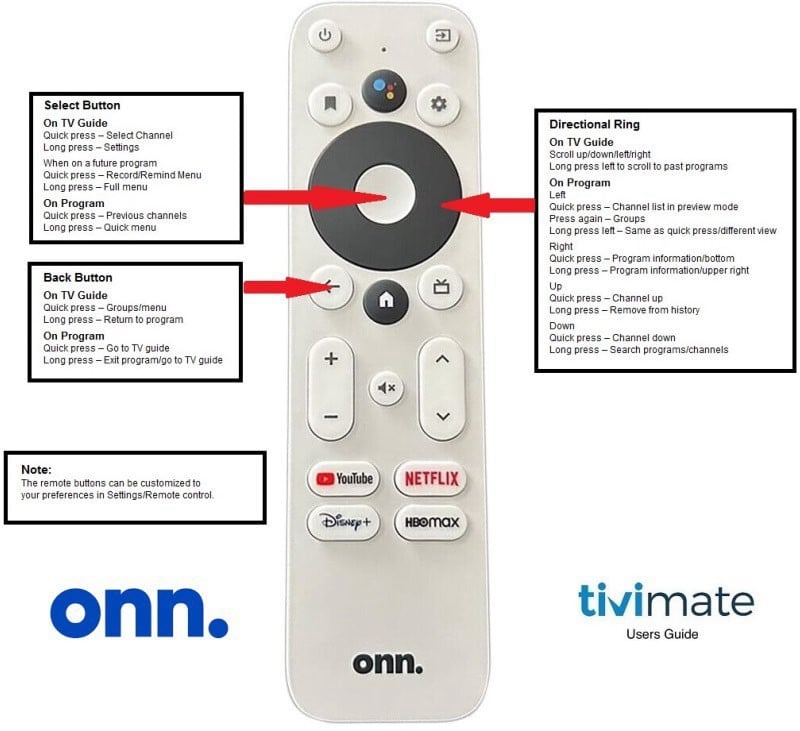
When the TV is turned on, the device will start up, it will go to the home screen first, the TiViMate app is the first icon on the first row. Highlight the app and press select on the remote.

The app will open and start playing the last channel. To change to another channel, press up or down on the directional ring, press left on the directional ring to bring up a channel guide, or hit the back button to go to the full channel guide.

If the VOD is enabled, hit the back button to bring up the channel guide and scroll left for the movies and shows. 

Add a Favorite

You can choose your favorite channels from any playlist and it will be added to your favorites group under the playlist and also under All Playlists. This makes it very easy to find the channels you watch most.

There are two ways to add a channel to your favorites. When on the channel guide, long press the select button, a menu will pop up on the right, scroll down and click on Add to Favorites. Or, when watching a channel, long press the select button and a menu will pop up on the bottom, just scroll over to Add to Favorites and click on it. You can also add channels to your favorites from the search.

If adding or removing multiple channels to your favorites, long press on a channel, go to the menu and scroll down to Manage Favorites, you will be able to select multiple channels to add or remove. This only works for the group you are in and in the favorites under All Channels. If you want to edit other groups, you’ll have to do each one separately.

Enable/Disable Groups

Go to Settings>Playlists, click on a playlist then scroll down to Manage Groups. Here you can decide what groups you want showing and what groups you want hidden. You will have to do it for each set of groups, TV, Movies, and Shows. For the live TV, this can also be done from the TV guide. Just select the playlist and long press the select button, when the menu on the right appears, scroll to the bottom to Manage Groups.

Another thing to consider while your here, you have the option of Show Newly Added Groups. What this does is display any new groups the provider may add at a later date, they are generally other countries so you’ll have to go back to the Settings and hide them if you don’t want them. But, you may be surprised, groups such as “Olympics”, when the Olympics are playing, may get added and you wouldn’t know if this option is turned off. If this is a kids streaming device, it would be best to have this off in case the provider adds something you don’t want your kids to access.

Note: If you are hiding groups to prevent access to those channels, go to your channel guide, long press the select button on any playlist, go to the menu and turn off Show Channels from Hidden Groups.
 

Quick Menu

To access the quick menu (bottom menu), press the select button while watching a TV program. Quick press shows last channels watched, this makes it easier to go back to a channel you use often. This will also have a button for the TV Guide and a History button but can be edited. Long press (or scroll down once after a short press) to access the menu, there are several menu options available including multi-screen, audio sync, closed captions, and the main settings. 

Sorting Channels Within a Group

To sort your channels you can do it as auto sort or you can sort manually.
To auto sort, go to Settings>Appearance>TV Guide and chose Channels Sorting. You will find some options on how to sort the channels, just chose the one you want.

To manually sort, when on the channel guide, long press select on any channel, a menu will pop up in the right, scroll down to Reorder Channels, then you can move the channels to any order you prefer.
Some users will edit the channel names to add a prefix number and sort by name so they will be in order and easy to find, this can be very tedious and time consuming but it works. 

Removing Prefixes and Suffixes

Many times you will see playlists with a US, UK, CA or similar in front of every channel or something after every channel and don’t have a need or a want for this. These can be removed and make your channel guide look much cleaner. To remove prefixes and suffixes from the channels in your channel guide; go to Settings>Appearance>TV Guide, then click on Channel Names Editor, turn it on then add the prefixes or suffixes you want removed, you will like the appearance of your channel guide a lot more. 

Player

There is a second TV guide, referred as the Channels List.
The channels list is accessed by hitting the select button then left on the directional ring when on live TV; it cannot be accessed from the VOD. This displays the information of channels from the current playlist/group you are in. To change the playlist or group to be shown, scroll left. You cannot access the far left menu from here.

Channels List; you can edit how the channels guide is displayed. These are all just on/off options, just try them to see which options you like best.

Info Panel; edit how you want the info panel displayed, these are all just on/off options.

History/Recent Channels; this is where you edit the channels list from your bottom menu. You can turn off the TV Guide and History buttons, set how many days to keep the history, the delay before adding the channel to the history, and how many channels you want shown in the history.
Menu; this is where you set what options appear in the bottom menu, you can also reorder them on how the appear.

Clock; turn on/off the clock appearing on the screen, the position, size, and transparency. There are a couple other options you may want to try. 

Video on Demand (VOD)

Video on demand for movies and TV series is a great option and gives you so much more to watch. VOD is only available by your provider.

To access VOD, from your channel guide, scroll to the far left and you will see the Movies and Shows, select the one you want, then scroll back to the right and you will see the list of providers/groups for your VOD, select one of them and your choices will appear to the right.

Most providers will have thumbnails of the movies/TV shows, some don’t, if there are no thumbnails, this is a provider issue and not anything you can do. 

Catch-up

Catch-up is used to go back to something previously aired and watch it. This is something that sets M1K3 above what other providers offer. There will be a clock icon on the channel guide behind the channel name. Simply click on the channel, press left on your select button and hold it down for 1 second, it will scroll back in time so you can find older programs.

First you will have to go to Settings/Playlists, click on your playlist and scroll down to Catch-up to turn it on. There are 3 “type” options, you may need to test these to see what works best for you or just set it to auto and let TiViMate find the type for you. There’s also a duration in days option, just realize, the more days you choose, the bigger your TiViMate file will be thus taking up storage on your device. Start by just setting it to 1 day. 

Pause/Rewind/Fast Forward Live TV

Some users like to use the pause/rewind/fast forward functions when watching TV. If does not work with live TV you will need to change to a catch-up channel if you wish to use this option.

To get to the pause/RW/FW functions, press the select button then press up on the directional ring. If the RW and FF buttons are lit up, they should work. To set how far forward or back is skipped when using the FF or RW, go to Settings/Playback and go to Skip Steps and set the durations you want to it skip to.

For live TV, it needs to record what is being played while it is paused; this is done through Time Shift which currently TiViMate does not have. You can pause and restart, but only for a brief amount of time, this is a false positive that pause is working. What it’s doing is using the buffer cache to play but as soon as the buffer size limit is reached, it will stop playing and jump to live. If it was truly pausing, then the FF and the RW buttons would work. 

Reminders

You can set reminders for upcoming shows you want to watch. Go to your channel guide, search for the program you want to be reminded of, short press the select button and a menu will appear in the middle with a few options, or long press the select button, a menu will pop up on the right, select Remind. To set the options for Remind, go to Settings/Other, click on Reminders, you will have a few options on how you want your reminders to work. 

Closed Caption

When watching a program, press the select button, a menu will appear at the bottom. Scroll over to CC and select it. Once you select CC, you will be given an option to select, if there are no options, CC is not available.

It is common though to have the CC option, but it doesn’t work make sure the Show Closed captions for all channels if available is turned on then go to the System settings for closed Captions and Display is turned on. If you can’t get to the settings there, go to your device settings, then Device Preferences/Accessibility/Captions.
If the closed captions don’t go away after turning them off, go to the CC settings, the System settings and turn off the Display. 

Audio Sync

You may experience a channel where the picture and the sound don’t match up. To correct this, press the select button, scroll down to the menu across the bottom, click on Audio Sync and change the offset up or down a little at a time, go back to what you were watching and see if it helped, keep doing this until the audio/video is synced together.

Common Error Codes

401- Access denied, usually permanent, the log-in credentials may have expired or no longer valid.

403 - Access denied, usually temporary but could be permanent. Sometimes just changing channels or updating the playlist will correct this.

456 - Region blocked, will need a VPN set to a different country to access.

504 - Usually temporary, the server may be overloaded and the request timed out, try again later.

DataSourceException - Usually temporary, can try changing channels and go back, update playlist, or just wait a while. Try playing with an external player.

MediaCodecException - Usually temporary, try back later or try using an external player.

DecoderInitializationException, go to Settings/Playback, scroll down to Audio Decoder and Video Decoder, whatever you have it set as (Hardware/Software) change it, then reboot your device. 

Remote Guide

The voice option will not work due to Google being removed from the Device

Maintenance

Preventative maintenance on your TiViMate is similar to preventative maintenance on your car, you can choose not to do it and everything will be fine, but doing it will help assure the app continues to run smoothly.

It is best to do this monthly to free up storage.

(1) Go to Settings>Appearance>Logos then scroll down to Clear Logos Cache and click on it.

(2) Then go to Settings>EPG, scroll to the bottom and click on Clear EPG, then click on Update EPG.

(3) Clear the app cache by pressing the "HOME" button, highlight the TiViMate app, long press the select button on the remote. This will bring up a "pop-up" select App settings>select clear cache. DO NOT CLEAR THE DATA, you will lose everything you’ve done and will have to start all over.

(4) Clear device cache by going into the device settings>Storage>Internal Shared Storage, go to cached data press select on Cached Data, choose okay to clear cached data, do this again until the size is UNDER 50MB

This would be a good time to run a backup and also unplug your router/modem and streaming device, let them sit for about 5 minutes then plug them back in and let them reboot. 

Got Questions?

It’s not TiViMate that buffers; it’s or your internet provider. This usually happens in the evenings during prime time or when something such as sporting events is being watched by a lot of people.

Your internet provider could also be having problems with too many users at the same time during peak hours and is throttling your connection. 

A VPN maybe needed to help with this issue. Contact us ASAP to get setup with our VPN.

This is common, not all providers have CC even if there’s an option to choose it.
You can also use an external player such as VLC Player. 

Some channels don’t have a channel guide and there’s nothing you can do. If the EPG source is not naming the channels exactly the same way the playlist is, TiViMate may not be able to recognize this and match them up.

Go to Settings/Playlists, click on the playlist and scroll down to Xtream Codes Parameters, click on it and scroll to the bottom. It will show you the service expiration date. 

There are two things that can cause this, one, Go to Settings/Playback/Auto Frame Rate and change the setting, second, go to Settings/Appearance/Player and turn off Show Black Screen When Changing Channels.

The provider has updated his service and may have removed some channels, added channels, or even added or removed entire groups. This is not because of something you did.

If you are still having issues,
schedule a service call!

© Copyright 2025 M1K3
All Rights Reserved